Tag: google analytics 4

  • How to Check Backlinks in Google Analytics (The Right Way)

    How to Check Backlinks in Google Analytics (The Right Way)

    Most advice on how to check backlinks in google analytics is wrong in one important way. It tells you to open GA4, look at referral traffic, and call that your backlink list.

    That isn't a backlink list. It's a traffic report.

    That difference matters because a backlink can exist without ever appearing in Google Analytics. If nobody clicked it, if tracking failed, or if the visit wasn't recorded, GA4 won't show it. So if you rely on Analytics alone, you'll miss links that are real but silent, and you'll overvalue links that send visits but lead nowhere.

    Small business owners don't need more vague SEO advice. They need a clean workflow that answers two different questions. First, what links point to my site. Second, which of those links send useful traffic. Google Search Console helps with the first. GA4 helps with the second.

    Table of Contents

    Why Google Analytics Can't Show You All Your Backlinks

    A lot of articles get this wrong from the start. GA4 is useful for judging which links send visitors. It is not a place to inventory every site that links to you.

    That limitation comes from how Analytics works. GA4 records sessions and events on your site after someone arrives and tracking fires. If a page links to you but nobody clicks, if the click strips referral data, or if tracking never loads, GA4 has nothing to show.

    This is the distinction that matters for the rest of the article: a backlink is the link that exists on another site, while referral traffic is the visit that happens after someone clicks it and GA4 captures the session. Related, yes. Interchangeable, no.

    That difference changes the question you can answer.

    GA4 helps with performance questions such as which referring domains send engaged visitors, conversions, or repeated traffic. Google Search Console helps with discovery questions such as which domains and pages link to your site, including links that have not produced any measurable visit yet.

    The right tool depends on the question you're asking:

    Question you want answered Best tool
    Which external sites sent measurable sessions GA4
    Which pages and domains link to my site Google Search Console
    Which linked pages brought engaged visitors GA4
    Which links exist even without clicks Google Search Console

    Small business owners run into this constantly. They expect to see a partner site in GA4 referrals, do not find it, and assume the link is gone. In practice, several other explanations are common. The link may be live but rarely clicked. The click may open in an app or secure environment that obscures referral details. The landing page may also fail to load GA4 correctly.

    So a backlink check done only in Analytics will miss part of the picture. GA4 still matters because it shows business impact. Search Console fills in the missing link inventory. Using both gives you the full view: what exists, and what drives traffic.

    Finding Your Top Traffic-Driving Links in GA4

    GA4 is useful here, but only if you ask it the right question. This report does not show every backlink pointing at your site. It shows the links that produced a measurable referral visit, which is a narrower and more business-focused view.
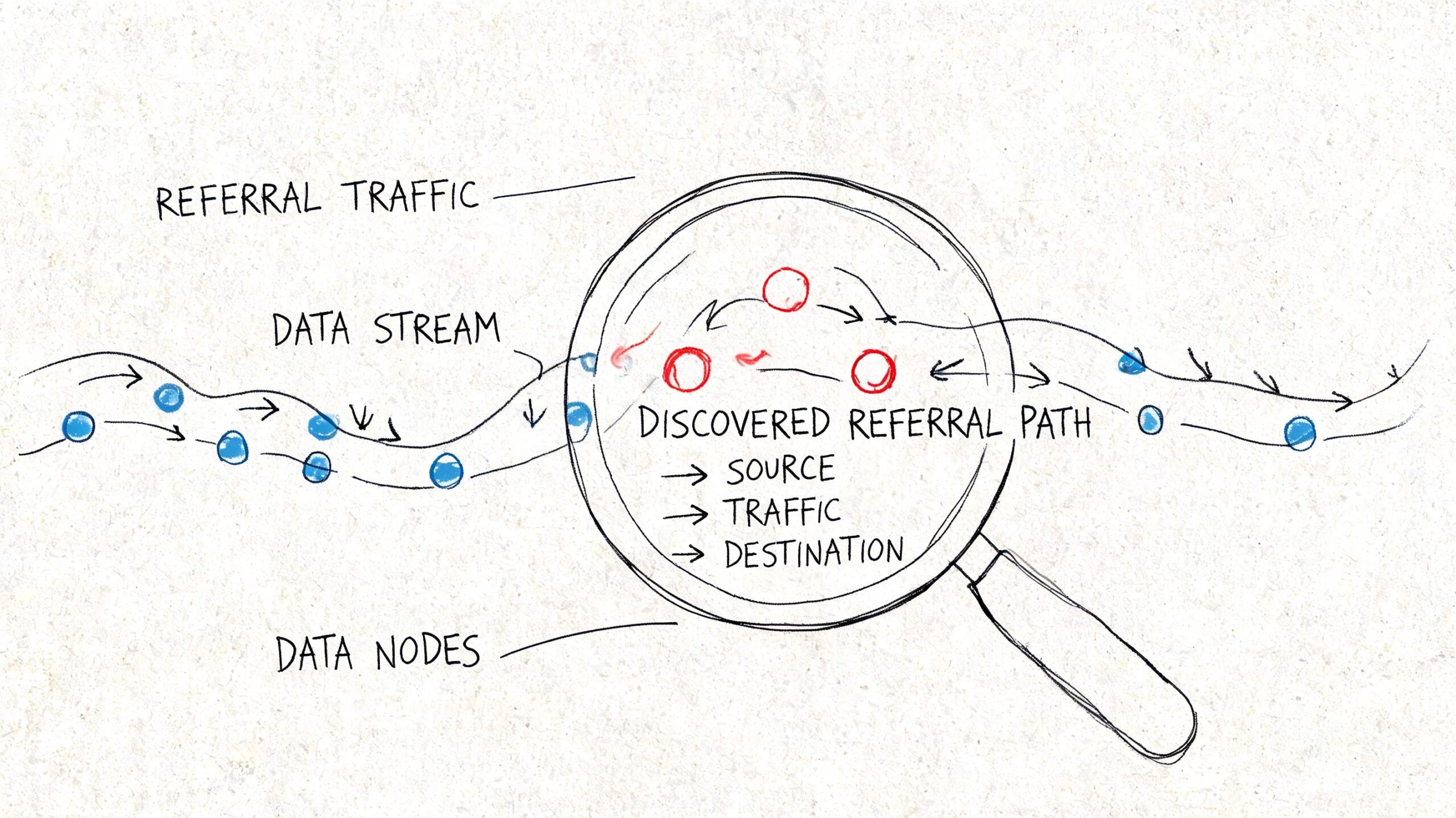
    A hand-drawn illustration showing a data stream with referral paths being analyzed through a magnifying glass.

    Open the right GA4 report

    Go to:

    1. Reports
    2. Acquisition
    3. Traffic acquisition

    Start by isolating Referral traffic. The default view mixes referral visits with Direct, Organic Search, and the rest of your acquisition channels, which makes link analysis harder than it needs to be.

    Once the table is filtered to referrals, GA4 becomes much more useful for answering a practical question: which external sites are sending visitors who engage with the site?

    Change the dimension so the data becomes useful

    The default dimension is usually too broad for this job. Switch the primary dimension to Session source / medium.

    That changes the table from a channel summary into a list of referring sources. You can quickly spot which domains are sending visits, then compare those sources using traffic and engagement metrics instead of relying on raw volume.

    A referral source with modest traffic can still be one of your best links if those visitors read, browse, and convert.

    Here's how to read the main columns:

    • Users shows how many people arrived from that source.
    • Sessions shows visit volume.
    • Engaged sessions helps identify sources sending visitors who stay active on the site.
    • Average engagement time gives a quick read on visit quality.
    • Conversions shows whether that source contributed to leads, sales, or another key action.

    Beyond session counts, the quality of the visit reveals the true value of the link. In practice, I often see a niche industry blog send fewer visits than a large directory, yet produce far better conversion rates because the audience is a tighter match.

    After you've set up the main report, this walkthrough can help if you want to see the interface in action:

    Add landing page context

    A referring domain is only half the story. You also need to know which page received the click.

    One option is to keep Session source / medium as the primary view and add landing-page detail. Another is to start from a landing page report and filter for referral traffic. Both approaches work. The better choice depends on the question you are trying to answer. Source-first is better for evaluating partner sites, publishers, and directories. Landing-page-first is better for finding pages that already attract off-site mentions and could convert better with a stronger call to action.

    Add landing page context

    Use a secondary dimension such as Landing page + query string. If you want a walkthrough of the GA4 setup, this GA4 reporting walkthrough shows the process clearly.

    This view helps answer the questions that matter during a real review:

    • Which blog posts attract referral clicks
    • Which service pages get mentioned on other sites
    • Which referral sources send traffic to pages with weak conversion performance
    • Which linked pages deserve updates because they already attract outside attention

    GA4 makes backlink data actionable. Instead of treating backlinks as a vanity metric, you can identify the pages already earning clicks from other websites and improve the pages that receive that traffic. For a small business, that usually means tightening the offer, improving the page layout, and making sure the next step is obvious.

    Using Google Search Console for a Complete Backlink List

    GA4 is useful for one job. It shows visits that happened. If you want the full list of sites and pages linking to you, use Google Search Console.
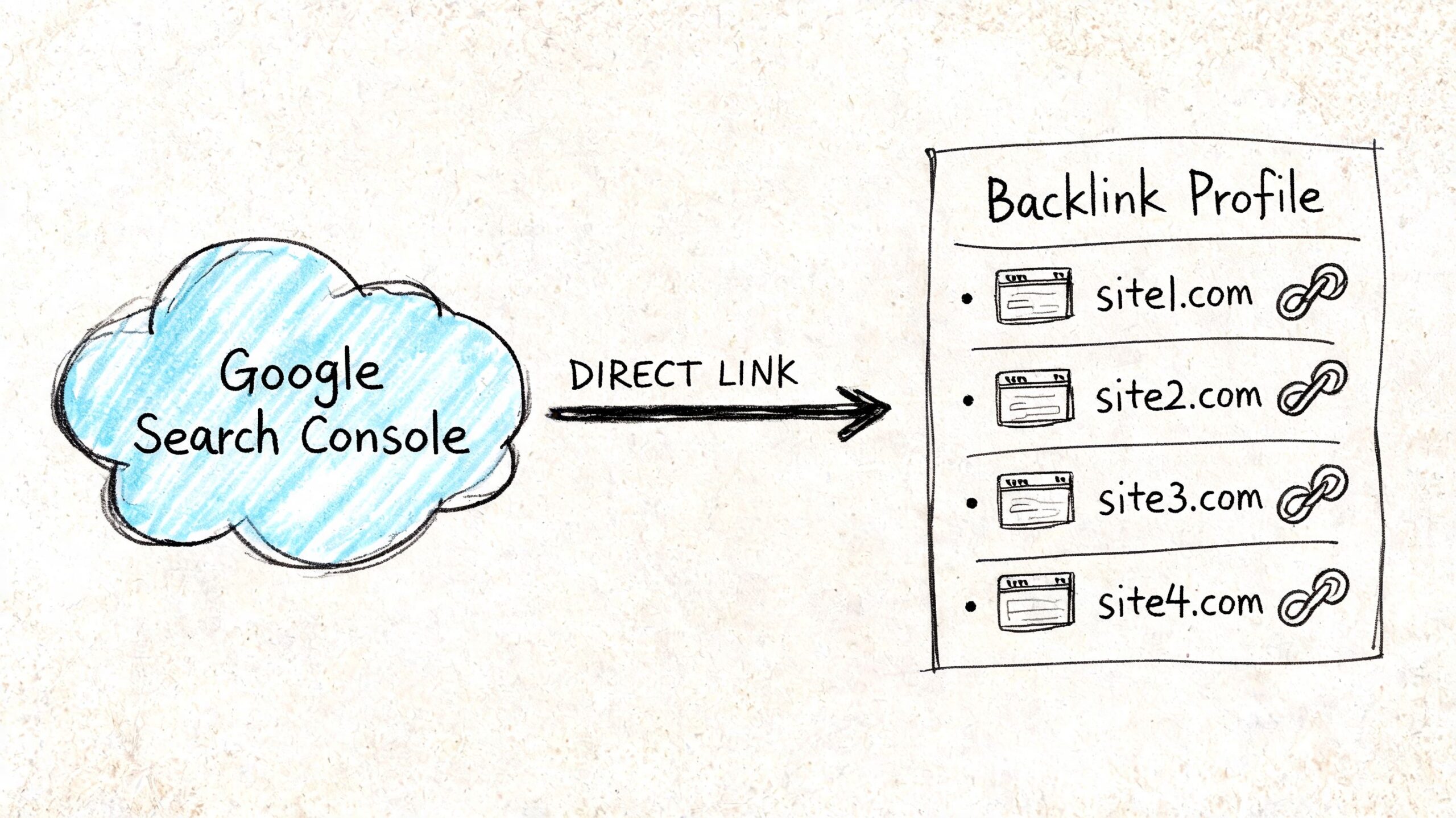
    A hand-drawn illustration showing a link from Google Search Console to a list of backlink profiles.

    Why Search Console is the starting point

    This distinction trips up a lot of business owners. A backlink is a link pointing to your site. Referral traffic is the visit that happens only if someone clicks that link and your analytics records the session.

    Search Console helps you answer, “Who links to my site, and which pages get those links?” GA4 helps you answer, “Which of those links sent visitors I can measure?” You need both answers if you want a backlink review that is useful.

    Search Console also catches links that have not produced any tracked visits yet. That still matters. Some links support visibility in search, some build credibility, and some send traffic later after the page gets more exposure.

    What to check in the Links report

    Open Google Search Console and click Links in the left menu.

    Start with these two reports:

    Report area What it helps you see
    Top linked pages Which pages on your site attract the most links
    Top linking sites Which external websites link to you most often

    Begin with Top linked pages if you want to spot content worth updating. A guide, location page, or service page that earns links already has authority. Improve that page first. Tighten the copy, add stronger internal links, and make the next step clearer.

    Check Top linking sites if you want to review link quality and relationships. Repeated links from a relevant industry site can be a good sign. Repeated links from scraped directories or unrelated domains deserve a closer look before you treat them as wins.

    You can also export the report and turn it into a working backlink sheet. I usually do that before reporting because it makes review faster and keeps the process honest.

    A simple workflow:

    • Sort by linked pages to find the assets that attract attention from other sites
    • Review linking sites to judge relevance, reputation, and repeat mentions
    • Match those pages and domains against GA4 to see which links also send engaged visitors

    That combined view is the point. Search Console gives you the backlink list Google associates with your site. GA4 shows whether any of those links turn into real visits and business value.

    Troubleshooting Common Referral Data Issues

    Bad referral data creates bad SEO decisions.

    GA4 is useful here, but only if you read the report with the right question in mind. A backlink is a link pointing to your site. Referral traffic is a visit that reached your site through a link or another referring source. Those are related, but they are not the same thing. That difference matters most when you start cleaning up noisy reports.
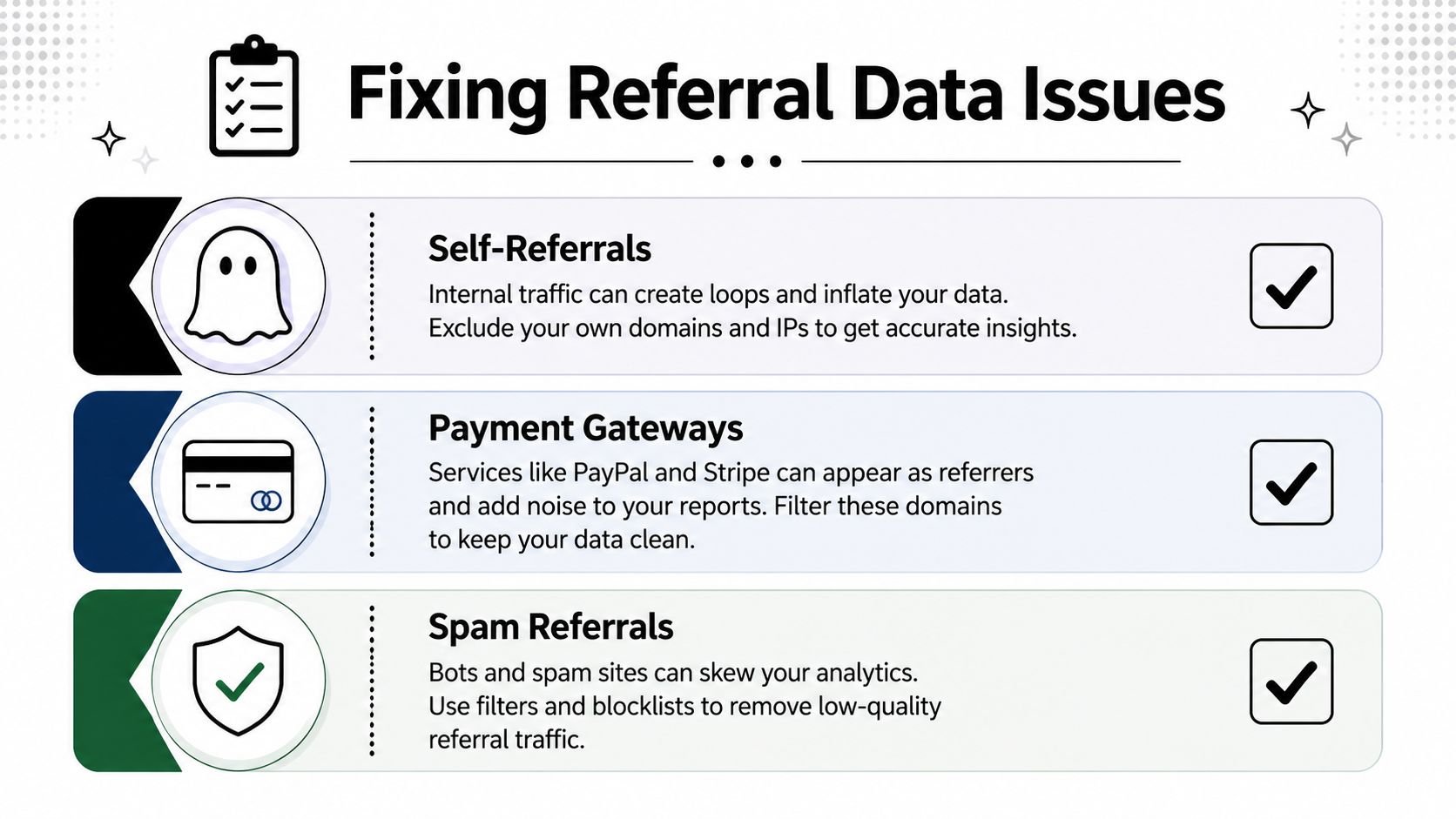
    An infographic illustrating three common referral data issues: self-referrals, payment gateways, and spam referrals in analytics.

    When referral traffic is not a backlink

    Some referral sources have nothing to do with link building. They show up because of how users move through your site, your checkout process, or connected tools.

    The usual offenders are easy to spot once you know what you are looking for:

    • Self-referrals. Your own domain appears as the referrer, which usually points to a tagging or cross-domain setup problem.
    • Payment gateways. A user leaves your site to pay, then comes back, and GA4 credits the payment domain instead of the original source.
    • Login, scheduling, chat, or booking tools. These can appear as referrals even though nobody intentionally linked to you in a way that helps SEO.

    If those domains stay in the report, your referral list stops being useful for backlink analysis. You start giving credit to technical pass-throughs instead of real mentions from other websites.

    How to clean up the report

    Start with a blunt review of the referral table. Ask a simple question for each domain: would a real person describe this as a website that recommended my business?

    If the answer is no, treat it as setup noise first and marketing value second.

    A practical cleanup checklist:

    1. Check for your own domain in referrals and fix self-referrals at the tracking level.
    2. Review checkout and payment providers so they do not overwrite the original acquisition source.
    3. List third-party tools used in forms, scheduling, logins, or embedded widgets, then decide whether they belong in referral reporting.
    4. Compare sessions with engagement metrics before treating a referring domain as a good opportunity.

    A high volume of visits from a domain means very little if those visitors do not engage. In practice, that usually points to low-quality traffic, a poor landing page match, or a source that was never valuable in the first place.

    How to spot broken backlink traffic

    The best referral cleanup work often leads to recovery, not exclusion.

    A common pattern looks like this. A site links to an old URL, a campaign page was removed, or a service page changed during a redesign. The link still exists, the referring domain still sends visitors, and those visitors land on a 404 or a weak fallback page. That traffic is already earned. It is just being wasted.

    Use GA4 Explore to isolate referral traffic by landing page. Add dimensions such as Session source, Landing page + query string, and Page title. Then filter for referral sources and look for pages tied to errors, outdated URLs, or unusually weak engagement. This is one of the fastest ways to turn referral data into a repair list.

    Look for patterns like:

    Signal Likely issue
    Referral traffic landing on a 404 page Broken external link or deleted destination
    Good source, weak engagement Mismatch between the referring context and the landing page
    Multiple visits to old campaign URLs Missing redirects after URL changes

    These fixes often produce faster gains than another round of outreach. When a relevant site already mentions you, restoring the right destination can recover traffic, leads, and attribution with less effort than earning a new link.

    A Practical Workflow for Backlink Analysis and Reporting

    Most business owners don't need another dashboard. They need a repeatable process that turns backlinks into traffic decisions.

    A hand-drawn sketch illustrating the integration process of Google Search Console and GA4 across three project phases.

    Use a two-tool workflow

    The cleanest process is:

    1. Open Google Search Console first and review the Links report.
    2. Export or note important linking sites and linked pages.
    3. Move into GA4 and check which referral sources produced sessions and engagement.
    4. Match source with landing page so you know which content earns both links and visits.
    5. Flag broken destinations if referral traffic lands on outdated or missing URLs.

    This works because each tool answers a different business question. Search Console gives you coverage. GA4 gives you performance.

    A lot of reporting goes wrong because people try to force one tool to do both jobs.

    Turn reports into decisions

    Once you have both views, your next move should be operational, not academic.

    Use your findings to sort links into buckets:

    • Keep building here when a source sends engaged visitors to relevant pages.
    • Improve the landing page when the source is strong but on-site engagement is weak.
    • Fix and reclaim when referral visitors land on broken pages or outdated URLs.
    • Ignore or exclude when the source is just technical noise.

    Here, analytics becomes useful for growth. You stop asking, “How many backlinks do we have?” and start asking better questions.

    For example:

    • Which linked pages deserve a refresh because they already attract attention?
    • Which referring sites send visitors who read, browse, or buy?
    • Which old URLs need redirects because they still receive referral clicks?
    • Which “top referrals” are really just payment tools or internal systems?

    If you want one advanced habit, make it this one. Review referral traffic to broken pages regularly. The GA4 Explore workflow using Page title, Landing page + query string, and a Referral filter is one of the most practical ways to turn backlink data into a fix list, as outlined in this KRM Digital guide on backlink diagnosis in GA4.

    Good backlink reporting doesn't end with a list of domains. It ends with a next action.

    That's the right way to approach how to check backlinks in google analytics. Use Search Console to find the links. Use GA4 to judge the traffic. Then fix what's broken, improve what's working, and stop treating all links as equal.


    If you want a practical SEO system without hiring an agency, Agency Secrets is worth a look. It focuses on the parts that move organic traffic for small businesses: keyword research, publishing useful content consistently, earning relevant backlinks, and building evergreen pages that keep compounding over time.


  • How to Monitor Web Traffic: A Founder’s Guide for 2026

    How to Monitor Web Traffic: A Founder’s Guide for 2026

    You launched the site. The pages look sharp. Your offer is clear in your head. Then you log in a week later and ask the question almost every founder asks at some point: is anyone visiting, and if they are, are they the right people?

    That’s where most small businesses go wrong. They check a traffic number, feel either encouraged or discouraged, and move on. But how to monitor web traffic isn’t really about counting visits. It’s about learning which pages attract buyers, which channels send time-wasters, and where your site leaks revenue.

    If you run a low-volume, high-margin business, that distinction matters even more. A local service company, consultant, clinic, or niche e-commerce store doesn’t need a flood of random clicks. It needs the right visitors, on the right pages, taking the right actions.

    Table of Contents

    Beyond Visitors You Need to Understand Them

    A founder checks analytics and sees 100 visits for the week. The first reaction is often, "We need more traffic." Sometimes you do. Sometimes you already have enough of the right people visiting, but the site is doing a poor job turning interest into inquiries.

    That distinction matters a lot in small, high-margin businesses. If one qualified lead can turn into a project worth thousands, traffic monitoring should help you separate serious buyers from casual readers. Raw visit counts will not do that. You need to know which pages attract prospects, which sources send people who take buying actions, and where good opportunities stall.

    A pencil sketch of a hand interacting with a blank computer monitor screen with a question mark above.

    Why raw traffic numbers mislead founders

    Traffic totals flatten important differences.

    Someone who lands on a blog post, skims for 20 seconds, and leaves is not equal to someone who visits a service page, reads your pricing, checks your testimonials, and fills out a form. If both count as just "one visitor," you cannot tell whether your marketing is attracting buyers or tire-kickers.

    I see this mistake all the time with small firms that sell expensive services. They celebrate a spike in traffic from a broad informational article, then wonder why sales stay flat. The answer is usually simple. The traffic was cheap in effort or cost, but weak in commercial intent.

    A better rule is this:

    If a metric does not help you decide what to improve, promote, or stop, it is probably a vanity metric.

    Useful monitoring answers business questions such as:

    • Which pages start visits that turn into leads
    • Which traffic sources bring people who view pricing, case studies, or contact pages
    • Which content attracts the right-fit prospect instead of low-intent visitors
    • Where interested visitors hesitate or exit before contacting you

    What useful monitoring looks like

    Good monitoring connects attention to outcome.

    For a small business, that usually means tracking more than sessions and pageviews. Watch the path people take. Do they move from a search landing page to a service page? Do they visit your pricing page before they submit a form? Do referral visitors from a directory bounce, while visitors from local search spend time on bottom-of-funnel pages? Those patterns are much closer to ROI than a top-line traffic chart.

    This is also where trade-offs show up. A blog post that brings in a lot of visitors may still be worth keeping if it introduces qualified prospects to your brand and assists conversions later. On the other hand, a traffic source that sends volume but produces irrelevant inquiries can waste sales time, especially for lean teams.

    The goal is not to admire traffic. The goal is to identify which visits have business value.

    That changes the questions you ask. Instead of asking, "How many visitors did we get?" ask, "Which channel brings people who act like buyers?" Instead of asking, "Which page gets the most clicks?" ask, "Which page helps a prospect move one step closer to revenue?"

    A store owner would not judge a day by how many people walked past the window. They would care who came in, who asked informed questions, and who bought. Your website should be measured with the same standard.

    Choosing Your Traffic Monitoring Toolkit

    Most founders don’t need more tools. They need the right few, chosen for the right reason.

    Some businesses need deep event tracking and flexible reporting. Others need a simpler setup with fewer privacy headaches. If you operate in a regulated market, the wrong analytics stack can create compliance problems you only discover after the fact.

    Pick tools based on business risk

    GA4 is still the default for many businesses because it gives broad traffic and event visibility. If you want to monitor channels, page performance, and conversion paths in one system, it’s powerful.

    But power comes with trade-offs. The interface can be more than a small business owner needs, and for companies in stricter jurisdictions, privacy questions aren’t academic. As Shoplazza’s overview of site traffic tools points out, businesses in regions with strict data protection laws like the EU may need a privacy-compliant option such as Matomo because some setups involving Google Analytics can create compliance risk if not configured correctly.

    That means the right tool choice depends on more than price. It depends on what would hurt more in your business: limited reporting, setup complexity, or a legal cleanup later.

    Don’t choose analytics software the way people choose a to-do app. Choose it based on reporting depth, compliance exposure, and whether you’ll actually use it every week.

    Traffic Monitoring Tool Comparison

    Tool Type Best For Cost Key Feature
    GA4 Businesses that want broad traffic and conversion tracking Free Event-based analytics and flexible reporting
    Matomo Businesses that need stronger privacy control Paid or self-managed depending on setup Data ownership and privacy-focused analytics
    Built-in website platform stats Founders who want simple visibility fast Usually included with platform Quick view of traffic basics without extra setup
    Server log or host-level reporting Technical teams that want raw access data Varies Direct traffic records from the hosting layer

    A few practical calls:

    • Use GA4 if you want depth and are willing to invest time in setup.
    • Use Matomo if privacy compliance sits near the top of your risk list.
    • Use built-in platform stats if you need a quick pulse check, but don’t mistake them for a real decision system.
    • Use server-side or host reporting as a supplement, not your main dashboard, unless you’re unusually technical.

    For most founders, the worst option is not “the wrong tool.” It’s half-installing three tools and trusting none of them.

    Getting Your Tracking Codes in Place

    A lot of small business owners reach this point, paste in a tracking code, see pageviews coming through, and assume the job is done. Then six months later they still cannot answer a basic question: which traffic source brings actual buyers, not just people who browse and leave.

    That problem starts in setup.

    If your tracking only measures visits, you will overvalue channels that drive curiosity and miss the ones that produce qualified calls, booked consultations, and closed deals. For a low-volume, high-margin business, that mistake gets expensive fast. Ten visits from the right audience can matter more than 500 from the wrong one.

    A hand illustration showing how to embed a tracking script code snippet into an HTML document structure.

    Direct install versus tag manager

    You have two practical ways to install tracking. Put the base script directly on the site, or install it through a tag manager.

    Direct install is fine for a simple site with a few pages and one primary conversion action. It is usually faster to launch, and there is less that can break during setup. The trade-off is maintenance. Every new event, ad platform tag, or call tracking script may require another site edit.

    A tag manager takes a little more care up front, but it usually pays for itself once you want to track more than pageviews. If you expect to measure form submits, appointment clicks, checkout starts, phone taps on mobile, or traffic from multiple ad platforms, a tag manager gives you more control without asking your developer to touch the site every time.

    Use a simple decision rule:

    • Choose direct install if your site is small, your tracking needs are limited, and you want the fastest path to reliable basics.
    • Choose a tag manager if you plan to test campaigns, add events over time, or need cleaner control over multiple tags.

    Whichever route you choose, complete the setup in this order:

    1. Create the analytics property in your chosen platform.
    2. Install the base tag on every page, either directly or through your tag manager.
    3. Verify it fires on your main entry pages, service pages, contact page, and thank-you page.
    4. Set up your core conversion events before building reports.

    What to track from day one

    Founders often ask whether they should track everything. No. Track the actions that signal buying intent.

    For a local service business, a homepage view is weak evidence. A pricing-page visit, consultation request, financing-page click, or completed lead form tells you much more about commercial value. Those are the signals that help you judge traffic quality.

    Start with actions like these:

    • Form submissions on contact, quote, or service pages
    • Quote or consultation requests
    • Checkout starts for e-commerce
    • Key CTA clicks such as “book now,” “get pricing,” or “call today”
    • Thank-you page views that confirm a completed action

    The goal is not more events. The goal is cleaner decisions.

    If organic search sends fewer visitors than social, but those visitors request estimates at a much higher rate, you have learned something useful. If paid traffic drives lots of landing page visits but no booked calls, that traffic may be cheap and still unprofitable. Good tracking lets you spot that difference early.

    A short walkthrough helps if the setup feels abstract:

    If you use WordPress, Shopify, or Squarespace, the menu names will vary. The standard does not. Install the tag once, confirm it loads on the pages that matter, then test your important actions yourself. Submit the form. Click the booking button. Reach the thank-you page. If your analytics platform does not record those actions, fix that before you trust any traffic report.

    Building a Dashboard That Tells a Story

    A default analytics account gives you data. It doesn’t give you judgment.

    The right dashboard should help you answer business questions quickly, not admire charts. For a founder, the best dashboard is usually a one-page view that tells you whether traffic quality is improving, stagnating, or drifting toward the wrong audience.

    Start with five business questions

    A dashboard becomes useful when every widget earns its place. Keep only the views that help you decide what to do next.

    Start with these questions:

    • How many sessions are we getting
    • Where are those sessions coming from
    • Which pages bring people in
    • Which actions signal buyer intent
    • How does this compare with the previous period

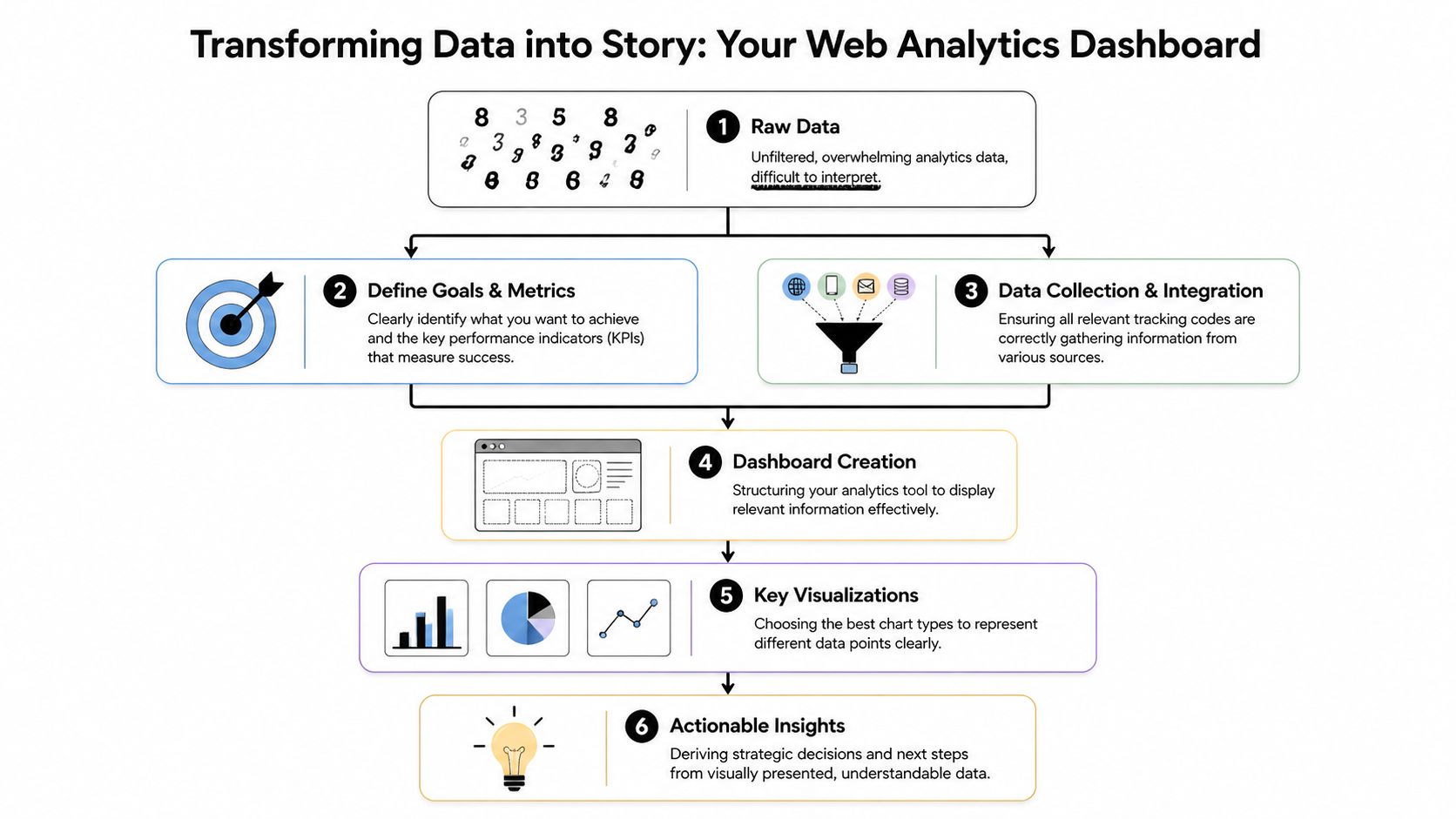
    A flowchart diagram illustrating the six steps to transform raw web analytics data into actionable business insights.

    A session is one of the few web metrics that deserves first-page treatment. HubSpot defines sessions as a series of user activities on your site within a 30-minute window, and notes that healthy sites often average 2 to 3 pages per session and 2 to 3 minutes of duration in many cases. It also recommends monitoring sessions by source to understand which channels bring engaged visitors in its web traffic analytics documentation.

    That “by source” part matters more than the top-line number. Organic, referral, direct, email, and paid traffic often behave very differently. If one source sends short, shallow visits and another sends fewer but better sessions, the smaller source may deserve more investment.

    The simplest dashboard that works

    A founder dashboard doesn’t need twenty charts. It needs a clean reading of signal over noise.

    A strong version includes:

    Dashboard Element Why it matters
    Sessions trend Shows whether overall demand is rising or falling
    Sessions by source Reveals where engaged traffic comes from
    Top landing pages Shows which pages attract attention first
    Conversion actions Connects visits to business outcomes
    Period comparison Helps you spot direction, not just totals

    A good dashboard answers “What changed?” A great dashboard also answers “Why should I care?”

    One more rule. Keep your dashboard review short. If it takes longer than a few minutes to understand the story, the dashboard is doing too much. Founders need signal they can act on before the next meeting, not a new hobby in data analysis.

    Interpreting What Your Traffic Is Telling You

    Analytics becomes valuable when you stop reading numbers as verdicts and start reading them as clues.

    A founder sees “high bounce rate” and thinks failure. An analyst sees a starting point: wrong message, wrong audience, weak page structure, slow load, unclear offer, or a mismatch between the promise in the source and the reality on the page.

    How to read bounce rate without guessing

    Bounce rate is the percentage of single-page visits. It’s useful because it often exposes friction fast.

    According to Semrush’s website metrics overview, bounce rate averages 40 to 60% across industries, and a rate above that on a key landing page is a warning sign. If your services page shows a 70% bounce rate, that points to a problem in messaging, pricing clarity, or user experience.

    That doesn’t mean every high bounce is bad. A visitor may get the answer they needed and leave. But on a page meant to generate leads, high bounce with low inquiry volume usually means something is off.

    Use this diagnostic sequence:

    1. Check the source. Did the traffic come from a keyword or campaign that mismatches the offer?
    2. Check the message. Does the headline confirm what the visitor expected?
    3. Check the path. Is the next step obvious, credible, and easy to take?

    Ask “why?” three times for every bad metric. The first answer is usually too shallow to fix the real issue.

    Patterns that point to revenue problems

    Some combinations of metrics are more revealing than any single number.

    • High traffic and weak inquiries often means the content attracts interest but not buyers.
    • Strong engagement on one page and weak performance elsewhere usually means that page has a sharper promise than the rest of the site.
    • A spike from one article or referral source often signals a topic or channel worth expanding.
    • Traffic to informational pages without movement to service or product pages suggests your internal linking or calls to action need work.

    Low-volume businesses require discipline. If you only get a modest number of visits, each wrong click costs attention. You can’t afford to optimize for empty traffic.

    The better question isn’t “Which page has the most visitors?” It’s “Which page attracts people who act like future customers?”

    Troubleshooting and Automating Your Monitoring

    Even a well-built setup breaks. Plugins update, scripts disappear, pages change, and reports suddenly look wrong.

    The fix is to stop treating analytics as something you manually inspect only when you feel nervous. Build a baseline, then let the system alert you when something unusual happens.

    Fix the common failures first

    If traffic suddenly drops to zero, don’t start with panic. Start with the boring checks.

    • Check whether the tracking code still exists on the site after a theme or platform update.
    • Compare page coverage to make sure the script appears on all key templates.
    • Test a conversion action yourself and confirm it appears in the analytics tool.
    • Review date ranges and filters before assuming performance changed.

    If two tools disagree, that doesn’t always mean one is broken. Different platforms measure activity differently. What matters is whether your primary tool is consistent enough to support decisions.

    Use alerts so you stop babysitting dashboards

    The smarter model comes from network monitoring, not just marketing analytics. As Paessler’s guide to traffic analysis methods explains, the practical principle is to establish a baseline of normal traffic patterns first, then set meaningful thresholds so you catch real problems without creating alert fatigue.

    That approach works for founders too. Watch for significant deviations, not every wiggle.

    Useful alerts include:

    • Organic traffic drops on pages that usually bring leads
    • Sharp spikes to a specific page that may signal an opportunity
    • Conversion tracking failures when a key action suddenly stops recording
    • Channel anomalies when one source behaves far outside its normal range

    The point of automation isn’t more notifications. It’s fewer pointless dashboard checks and faster response when something matters.


    If you want a practical SEO system that goes beyond analytics and helps you turn traffic insights into content that attracts better leads, Agency Secrets is worth a look. It’s built for business owners who want clear execution, stronger organic visibility, and a simpler path to revenue without hiring a full agency team.

    Authored using Outrank